
Create a Small Game from Scratch Series: Endless Standing First-Person Shooter
Level: Beginner
Type: Blueprint
Version: 5.6
Download Project
In the previous tutorial, we implemented weapon mechanics, which are quite difficult to debug. That’s why we need to create a debug system for the game—one that will not only help us visualize the weapon component, but also support other features in the future.
This is another feature that’s easier to implement in C++, since you can use UProperty getters and even add custom metadata to automatically include variables in the debug system. However, we’re working only with Blueprints, so we need to create a custom debug system ourselves.
- Idea
- Base Widgets
- Base Class – Debug Manager
- Debug Weapon Function Library
- Actual Widgets
- Adding Debug Manager to Player Controller
- Final Result
Idea
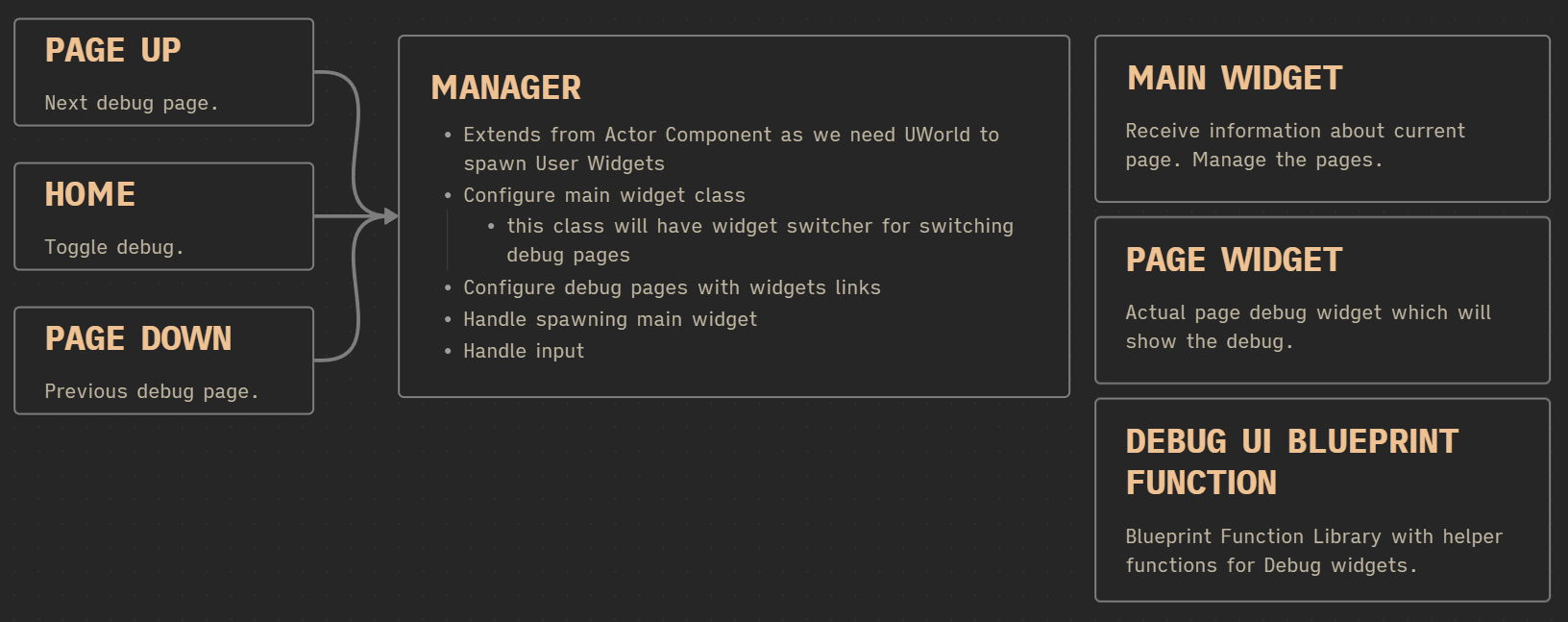
The idea is simple: I want to use configurable and toggleable debug pages. The system will use UMG for rendering the debug interface, which gives you full flexibility to create any kind of debug visualization you need.
Base Widgets
W_DebugSinglePage
This will be a single base class for debug pages, derived from UserWidget. It will have one variable: PageName (of type Name), and one function:
OnConfigured

Which will be called right after the page is configured.
Widget Hierarchy
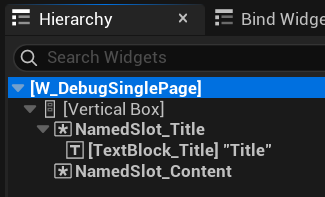
As you can see, I’m using Named Slots, which can be used later in widgets that extend from this base class. It’s a very useful feature in UMG.
W_DebugMainWindow
This is the root widget, which will hold the page widgets inside a WidgetSwitcher.

Variables
| MainWidgetSwticher | WidgetSwitcher | Comes from the Designer panel. Holds the debug pages. |
| CreatedPagesWidgets | TMap<Name, W_DebugSinglePage> | A map containing all created debug page widgets, indexed by page name. |
| bWidgetsCreated | bool | Indicates whether the widgets have been created and configured. |
| CurrentShowingID | int | Stores the ID of the currently visible page (used by the WidgetSwitcher). |
| MaxIDs | int | Stores the total number of debug pages. |
| CurrentShowingName | name | Stores the name of the currently visible page. |
Functions
ConfigureMainWidget with one input TMap<Name, W_DebugSinglePage Class>
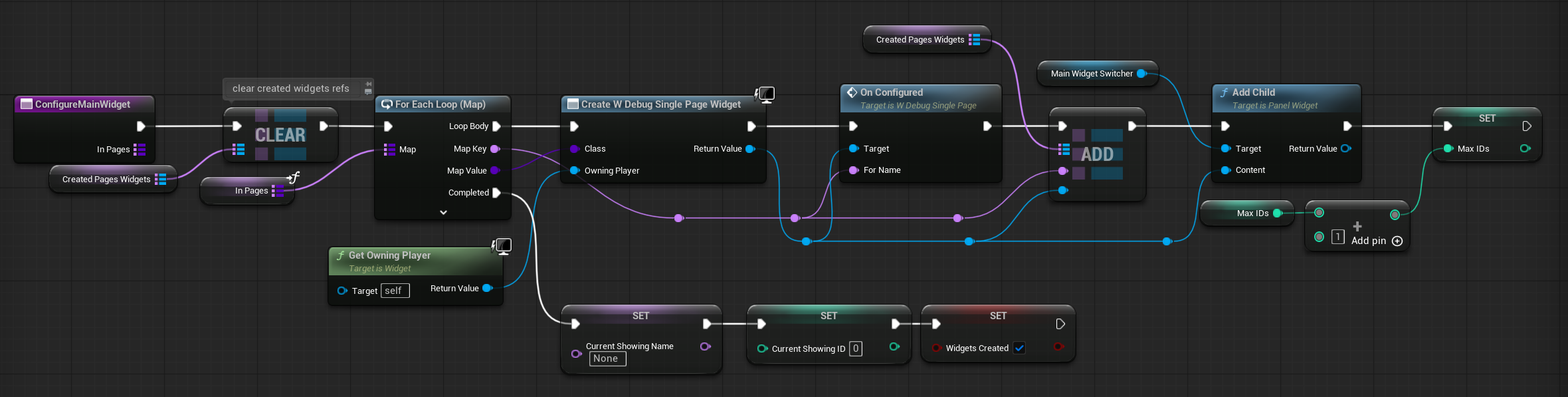
The function creates the page widgets, adds them to the WidgetSwitcher, and stores them in the TMap.
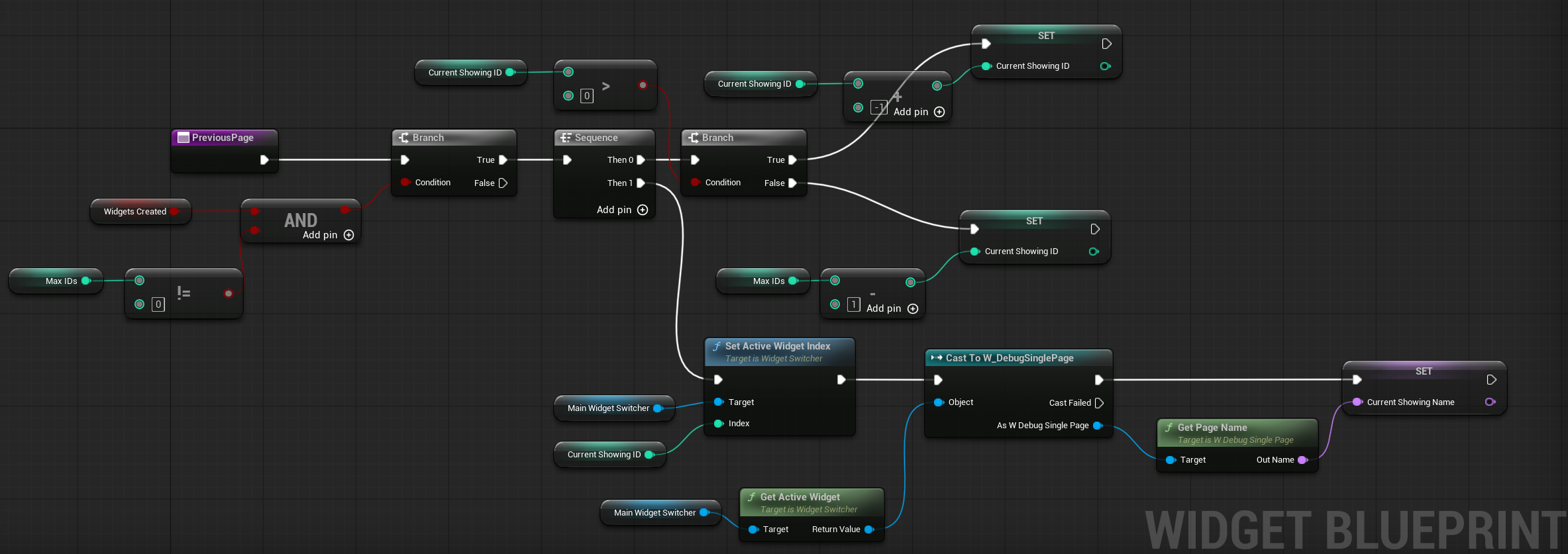
NextPage — This function changes the currently shown page by updating the current ID, setting the active widget on the WidgetSwitcher, and updating the CurrentShowingName.
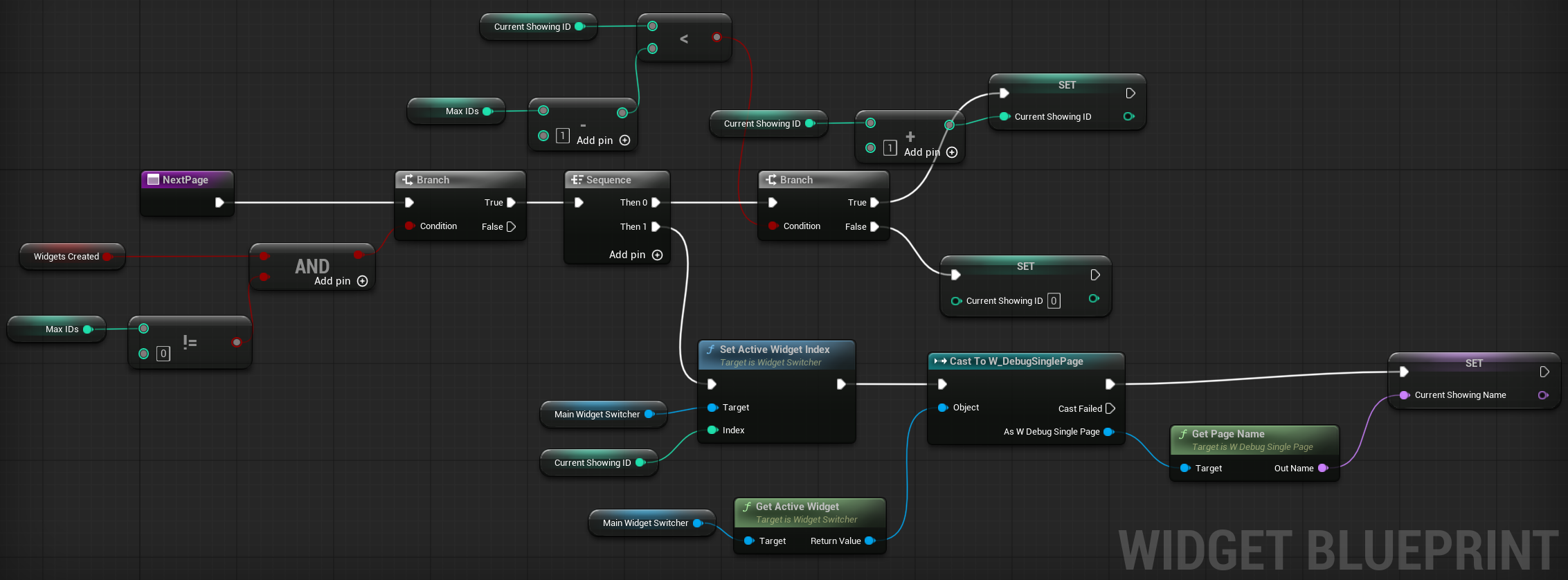
PreviousPage — The same as NextPage but opposite.
Base Class – Debug Manager
In Blueprints we don’t have Subsystems and for such manager I would use World Subsystem. Instead we will use Actor Component where we have access to the World.
Variables
| MainWidgetClass | W_DebugMainWindow soft class | Editable. The soft class reference for the main debug panel widget. |
| Pages | TMap<name, W_DebugSinglePage soft class> | Editable. A map defining which widget class to use for each debug page. |
| bShowingDebug | bool | Stores whether the debug UI is currently visible. |
| MainUserWidget | W_DebugMainWindow soft object | Soft object reference to the previously spawned W_DebugMainWindow widget. |
| MainWidgetClassRef | W_DebugMainWindow class | Holds the class reference for the W_DebugMainWindow widget. |
| PagesClassRefs | TMap<name, W_DebugSinglePage class> | Stores class references for W_DebugSinglePage widgets for each page. |
| PagesArray | name array | Stores the names of all available debug pages. |
| OwningPC | Player Controller object ref | Stores a reference to the owning player controller. |
Functions
Configure — Takes a PlayerController as input. This function prepares the necessary data—for example, it loads each widget class.

Input_ToggleDebug — This function attempts to toggle the visibility of the debug widgets. If they haven’t been created yet, it will create and configure them first.
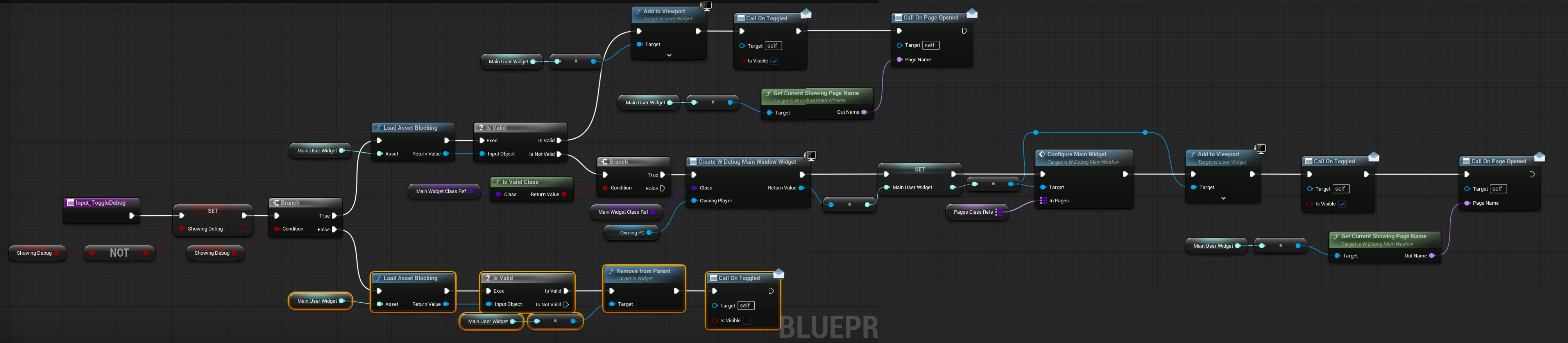
Input_NextPage & Input_PreviousPage — These functions change the currently displayed debug page in the main widget.


BeginPlay — This calls the Configure function, so each time the component is created, it automatically attempts to configure itself.
Debug Weapon Function Library
I’ve created a function library dedicated to weapon debugging. It helps keep things organized and avoids code duplication.
A Blueprint Function Library is a special type of Blueprint or C++ class that contains a collection of static, global functions. These functions don’t belong to any specific object or actor, and can be called from anywhere in your Blueprint graph, as long as the library is accessible.
They’re like utility toolboxes — perfect for reusable logic that doesn’t need to be tied to a specific object instance.
⚠️ Be Careful with Custom Types in Function Libraries
While function libraries are super useful, you need to be cautious about what types you reference inside them. Avoid using custom Blueprint classes, structs, enums, or assets directly in the function signatures or as default values. Why?
Because Unreal’s asset loading system will force-load every asset referenced by the function library as soon as the project starts, even if you don’t use that function right away. This can drastically increase load times and hurt performance, especially on large projects.
It contains functions to directly set the text of a TextBlock widget based on a TMap, using a specific action type. This is useful because all our debug data is displayed per action type — such as Primary, Secondary, or Tertiary.
Actual Widgets
W_Debug_PlayerWeapon and W_Debug_PlayerAnimBP extend from W_DebugSinglePage and they are used to actually draw stuff.
Adding Debug Manager to Player Controller
Now we need to add the debug component to our PlayerController class and ensure that debug input is properly passed to it.
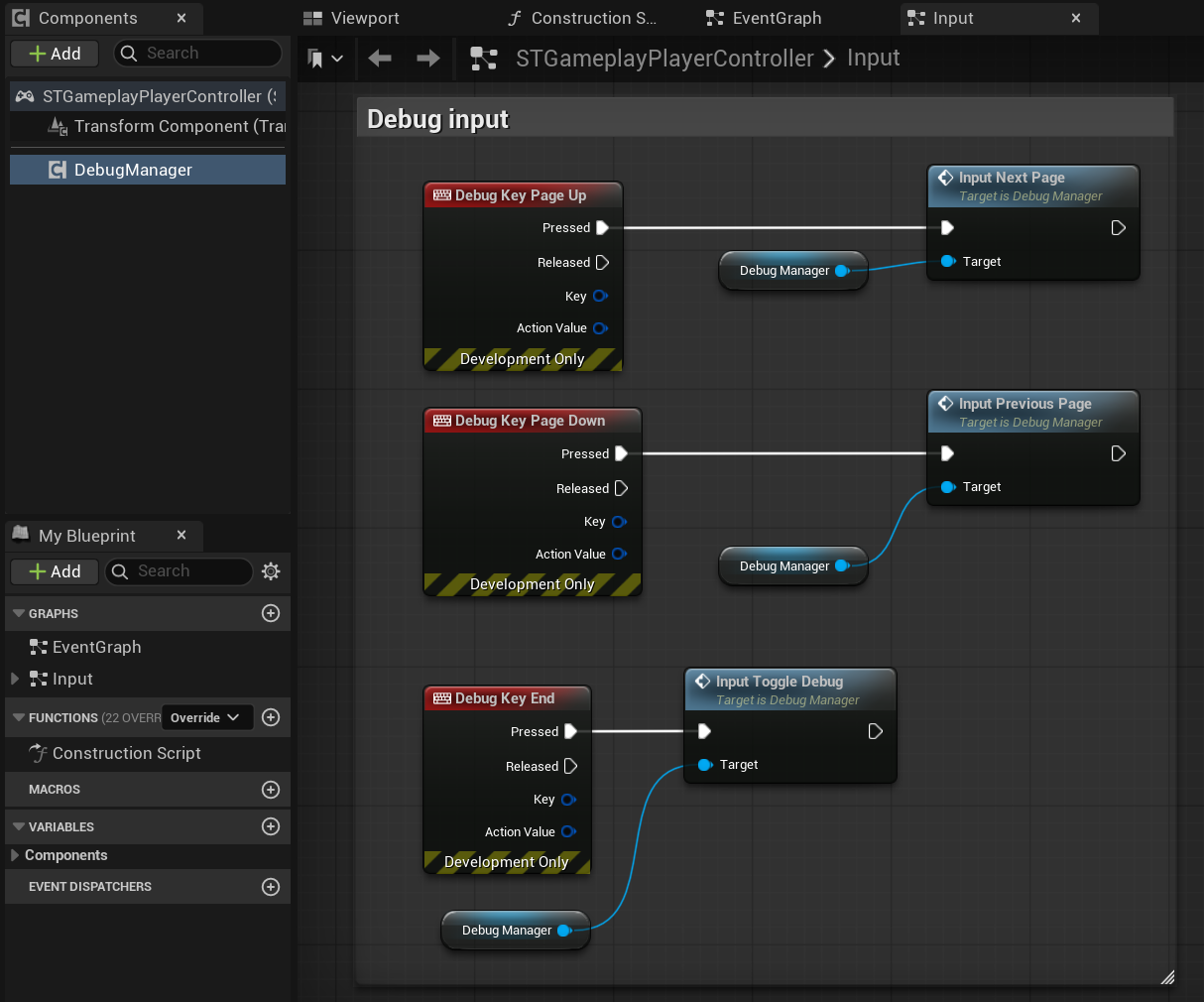
Debug Component settings.
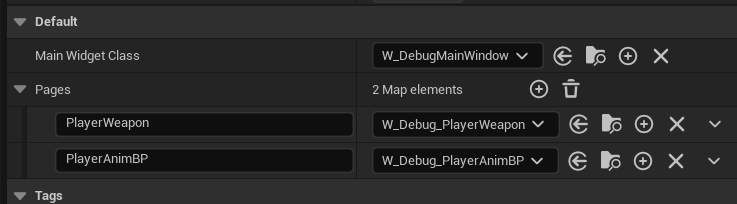
And that’s all – this way you can add another pages to debug your variables.
Final Result
I have also added input material. If we were working in C++ I would do something like this. Custom UMG slate widget to be able to draw float history in 2d inside UMG.
NOTE: Careful_Butterfly_84 and Grizz4096 from Reddit suggested to check out Cog and ImGui for more advanced debug UI. I’ll definately take a look, and you should also.
What next? Damage System!
 Kolosdev.com
You must be logged in to post a comment.